Based on new business requirements our intranet SharePoint needs an update from version 2010 to 2013.
The new installation will be part in our existing Office 365 hybrid environment.
As I’ve completed the Core Solutions of Microsoft SharePoint Server 2013 course I going to perform this project on my own.
In this series of posts I would like to share my knowledge and experience in building this new intranet based on SharePoint 2013.
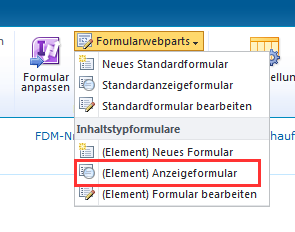
You can print every SharePoint list item with the keyboard short cut Ctrl+P. But adding a real print button to the SharePoint list view isn’t that difficult too.
Choose the form type in you list options under form webparts.
In my company the user only have user rights on their computers. As you should know you’ll face many problems with this restriction.
Many users want to install third party software on their computers or add a printer at home. To reduce argues and make the user happy, I’ll assign administrator rights for a temporary time.
Based on a predefined GPO and based on a list showing which user has administrator rights in a specified time period, my PowerShell script creates new temporary GPO to assign local administrator rights.
Having unchecked files in the SharePoint is not a big deal as long as you aware of the those files.
Being unaware of which files are unchecked can really harm the information integrity of the SharePoint.
In one of my last posts I’ve reported the SharePoint storage space used by files and found about 1 GB of unchecked files by several people.
As they are in most cases unaware of those files or even don’t understand what the file check-in/check-out is about, it’s almost impossible to handle this files.
KeePass is a highly recommended Passwordsafe. Despite its supposed to be used mainly by private people it’s adaptable for business cases. In my company the KeePass password database is saved on a SharePoint folder and is encrypted with a password and a private key. The key has to be stored on the local machine.
It could be difficult to force employees to store their passwords in the KeePass database as many won’t get along with it. They’ll more likely store their password in third party tools.
However storing a users password in another programm as KeePass f.e. microsoft remote desktop can be a security risk because the password is only encrypted in the user context.
A good way to start writing a custom function in PowerShell is an advanced template like this.
This is my custom PowerShell function template, whenever I’m writing a new script I’ll start with one of my templates. Having consistency in structure and naming of code is an important part in collaboration.