3 min read
Terminal navigation
Inspired by my brothers new navigation I created my own custom navigation. In fact it is already live on my website. Once I my brother sees it, he will roll his eyes and think “What else did I expect!”. The new navigation is a terminal prompt!
Here is a recap of how I built the new navigation.
Specification
My initial thought was to simply show a a terminal screen instead of the navigation list. What I had in mind was something like this:
user@debian:/~$ ls
Home/ About/ Projects/ CV/ Contact/ Archive/ Tags/ Categories/
Instead of implementing a fully fetched terminal, I wanted to start easy and only support these commands:
- cd
<path> - ls
- help
Changing into a directory should switch the page. Processing the inputs will most likely require some javascript. However, I know the no-javascript folks out there and wanted to make is sure there is a fallback to the normal navigation if javascript is disabled or not supported.
Mockup
Instead of prompting the entire thing, I started out with simple mockup.
In my Hugo theme I updated the file layouts/partials/header.html with this:
<header>
<h1>{{ .Site.Title }}</h1>
<nav>
<style>
#terminal-screen {
background-color: black;
color: white;
font-family: monospace;
font-size: 1.1em;
padding: 1em;
padding-left: 1.3em;
margin-top: 1.5em;
}
#terminal-screen input {
font-size: 0.8em;
border: none;
margin: 0em;
background: black;
color: white;
border-bottom: 1px solid white;
border-radius: unset;
}
form > input:focus {
border: none;
}
</style>
<script>
</script>
<div id="terminal-screen">
<form>
<span>user@arch:/~$ </span><input type="text" placeholder="help" />
</form>
<p>Write 'ls' and hit enter to list navigation items. Use 'cd <item>' to open the link.</p>
{{ range .Site.Menus.main }}
<a href="{{ .URL }}">{{ .Name }}</a>/
{{ end }}
{{ if .Site.Params.search }}
<a href="{{ .Site.Params.search.url }}">Search</a>/
{{ end }}
</div>
</nav>
</header>
And in result got this:
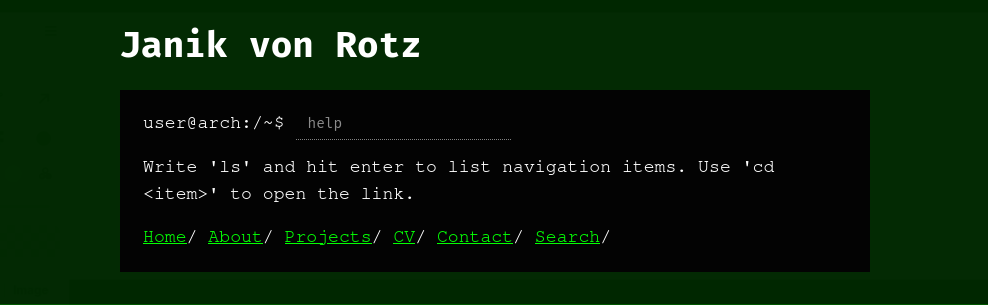
There is no functionality, it just shows what the entire thing should look like.
Implementation
Maybe it could have been implemented without javascript. Some people build entire compilers with html/css only! But I am not one of them. My initial prompt along the with the mockup code was this one:
Update the form and the help text to be hidden. Then add javascript that reveals the form and hides the navigation items. I want to make sure that the navigation works with and without javascript. Further add javascript to process the form input. If the user enters help then show the help text. If the user enters list then show the navigation item. If the user enters
cd <item>open the link of the item. The input should not care about upper and lowercase letters.
The output not ok and the code and prompt required some tweaks. I updated my mockup:
- Set an
idon every element. - Replace the
ptag withspan
And extended the prompt:
- Ask to not add comments to javascript code
- Use attribute
hiddenand not the style
Then the output was good enough and I could further reine the code. The final result is: https://codeberg.org/janikvonrotz/hugo-new-css-theme/src/branch/main/layouts/partials/header.html
I very much like that the javascript code and style is embedded into this file. Of course I have many ideas on how to improve this thing, but I would like to hear from you the readers. So please share your though in the comments.
Category: web-developmentTags: 100daystooffload , terminal , navigation , screen
Edit Page / Show Statistic